Client name withheld for privacy.
Summary
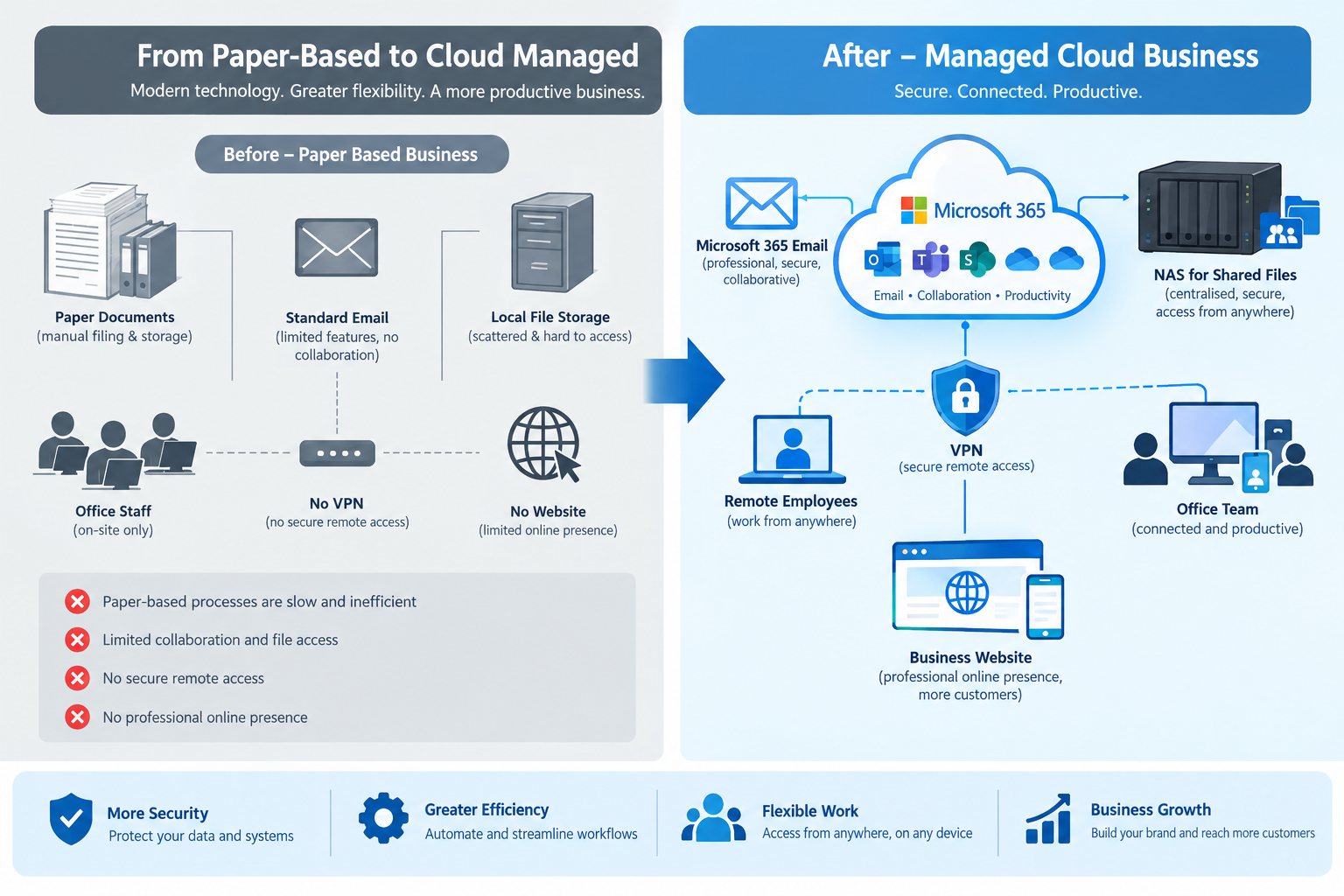
IT Engineering Pro, a Melbourne IT services company based in Oakleigh, set up the IT for a construction company when the builder had just four employees and ran almost everything on paper and basic, outdated spreadsheets. Quotes, job sheets and records were handwritten or kept in basic spreadsheets, and nothing could be accessed away from the office.
We built them a complete setup from scratch: a move from traditional email to a full Microsoft 365 solution, a business website, a premium cloud file server for shared files with group-based permissions controlling which employees can access what, and a VPN so staff could reach those files securely from anywhere. Because it was planned to scale, the same setup has grown with the business from 4 to 25 staff.
- IT support for builders, from first setup through to ongoing support
- Going paperless, with files, quotes and records moved online into one place
- Traditional email replaced with Microsoft 365, with mailboxes migrated to Exchange Online, plus Teams, SharePoint and OneDrive
- Microsoft Entra ID security groups and MFA enforced on every account
- Premium cloud file server with RAID, hourly snapshots and offsite backup, for a one-time cost
- Group-based permissions that control which employees can access which folders, from the office team to site managers and the owners
- Built-in security that blocks unwanted websites and connections from specific countries
- VPN remote access on the office firewall, with individual accounts and no ports open to the file server
- Business website so customers can find them and get in touch
- Scaled from 4 to 25 staff without rebuilding the setup
- The same solution suits every trade, including painters, plumbers and electricians
1. The client profile
| Industry | Building and construction (small business) |
|---|---|
| Service | Construction IT support, small business IT setup and ongoing managed IT |
| Partners | Two partners, often out on jobs or working remotely |
| Staff | 4 when we started, now 25 |
| Starting point | Mostly manual paperwork, no central file storage and no remote access |
| Goal | Cloud setup, premium cloud file server, VPN, website and ongoing IT support |
2. The challenge
- Most of the business ran on paper. Quotes, job sheets and records were slow to find and easy to lose.
- Files lived on individual computers, so staff couldn't easily share or find the latest version.
- The two partners spent a lot of time out on jobs and had no way to get to business files from outside the office.
- The business was growing fast, so whatever we built had to cope with a lot more people without starting over.
3. What we built
Step 1: Planning the setup
We started by mapping how work actually moved through the business, from a customer enquiry to a quote, a booked job and an invoice. That told us what needed to go online first and how the folders and permissions should be laid out, with room for more staff later.
Step 2: From traditional email to Microsoft 365
The business was running on basic, traditional email accounts with no shared calendars or documents. As a Microsoft Partner, we set up a Microsoft 365 tenant, verified the domain, and migrated the existing mailboxes to Exchange Online over IMAP so no email history was lost. Once everything was copied across, we updated the domain’s DNS records so email started flowing to Microsoft 365, and set up email authentication (SPF, DKIM and DMARC) so the business’s emails don’t end up in spam.
From there, staff got Outlook, Teams for messaging and calls, SharePoint team sites for shared documents and OneDrive for their own work. Every account sits in Microsoft Entra ID with multi-factor authentication enforced, and access is managed through security groups rather than per user. Paper templates for quotes and job sheets were rebuilt as digital templates in SharePoint, so staff can create, share and find them from any device.
Step 3: Premium cloud file server for shared files
We set up a premium cloud file server as the central home for larger files and archives. The drives are configured in RAID so a single drive failure doesn’t lose data, and the shares are set up over SMB with folder permissions tied to user groups, so each team only sees what it needs.
Hourly snapshots let us roll back deleted or overwritten files, or recover quickly from ransomware, and a nightly encrypted backup goes to an offsite cloud copy. The file server is monitored, so we get an alert if a drive starts failing or a backup doesn’t complete. We also turned on its built-in security: geo-blocking so connection attempts from countries the business doesn’t operate in are refused, and automatic IP blocking after repeated failed logins. Because it’s a one-time hardware cost rather than a per-user monthly subscription, it gives the business plenty of storage without growing cloud bills.
Step 4: VPN remote access
The premium cloud file server is never exposed directly to the internet, and there are no open ports forwarded to it. Instead, we set up a VPN on the office firewall, so staff connect through an encrypted tunnel before they can reach the file shares. Each user has their own VPN account rather than a shared login, which means access can be removed the moment someone leaves. The firewall also blocks known malicious and unwanted websites, and traffic from high-risk countries, before it ever reaches the network.
The two partners got the same secure access from their laptops and phones, with split tunnelling so only office traffic goes through the VPN. They can check a job, approve a quote or pull a document from home or on site without slowing down their normal internet.
Step 5: Business website
We built the business a website so customers could see its services and get in touch, hosted with an SSL certificate and running on the same domain and DNS we were already managing for Microsoft 365.
Step 6: Growing from 4 to 25 staff
Because everything was built on standard accounts and group-based permissions, adding a new staff member is a short checklist rather than a project. We create the Microsoft 365 account, assign a licence, add them to the right Entra ID security groups (which flows through to SharePoint and the file server), issue their VPN account and set up their device. Leaving staff are handled the same way in reverse, so access is removed everywhere at once. The same core setup now supports 25 staff.
4. Results
| Area | Before | After |
|---|---|---|
| Paperwork | Mostly manual, on paper or basic traditional spreadsheets | Quotes, job sheets and records handled digitally |
| File storage | Spread across individual computers | Central premium cloud file server with RAID, hourly snapshots and nightly encrypted offsite backup |
| Remote access | None | Individual VPN accounts for all staff and both owners, no ports open to the file server |
| Email and collaboration | Traditional email, no shared calendars or files | Full Microsoft 365 with Exchange Online, Teams and SharePoint, and MFA for every user |
| Online presence | No website | Business website |
| Onboarding and offboarding | Ad hoc | Group-based checklist; access added or removed everywhere at once |
| Staff supported | 4 | 25, on the same core setup |
5. Frequently asked questions
Start with one place for all business files, usually a cloud workspace, a premium cloud file server or both, with a clear folder structure. Then move quotes, job sheets, dockets and invoices from paper to digital forms and templates, so staff can create and find them from any device.
Not always, but many businesses use both. A premium cloud file server is a dedicated home for large files, archives and shared folders, while Microsoft 365 handles email, collaboration and everyday documents. The file server is a one-time cost, so for large amounts of data it usually works out cheaper than paying ongoing monthly fees for extra cloud storage. It also comes with built-in security features, including user permissions, snapshots, backups, and the ability to block access from specific countries or IP addresses.
A VPN creates an encrypted connection between a staff member’s device and the office network. It lets owners and staff open files on the office NAS securely from home, on site or on the road, without exposing the NAS directly to the internet.
It should, if it is planned that way from the start. Using standard user accounts, group-based permissions and scalable cloud licences means adding a new staff member is a short setup task, not a rebuild.
Yes. The same setup of Microsoft 365, a premium cloud file server, VPN remote access and a website works for any trade business, including painters, plumbers, electricians, carpenters, landscapers and other tradies. Most trades share the same problems: paperwork, staff out on jobs and owners who need access to files from anywhere.
Yes. IT Engineering Pro provides IT support for builders and every kind of trade business across Melbourne, including painters, plumbers and electricians, from our office in Oakleigh, including cloud setup, premium cloud file servers, VPN remote access, websites and ongoing managed IT. We start with a free consultation and a fixed, upfront quote.
Construction IT support for builders and tradies in Melbourne
IT Engineering Pro sets up and supports IT for builders and every trade, from painters and plumbers to electricians, across Melbourne, including managed cloud solutions, premium cloud file servers, VPN remote access, websites and managed IT. Free consultation and fixed, upfront quotes.
Call +61 3 9570 4742 · info@itepro.com.au · Request a free quote
IT Engineering Pro, 172 Warrigal Rd, Oakleigh VIC 3166. Open Monday to Friday, 10am to 5pm.