Wi-Fi and Networking Case Study: Wi-Fi 6 Mesh Network for a Large Home
Client name withheld for privacy.
Summary
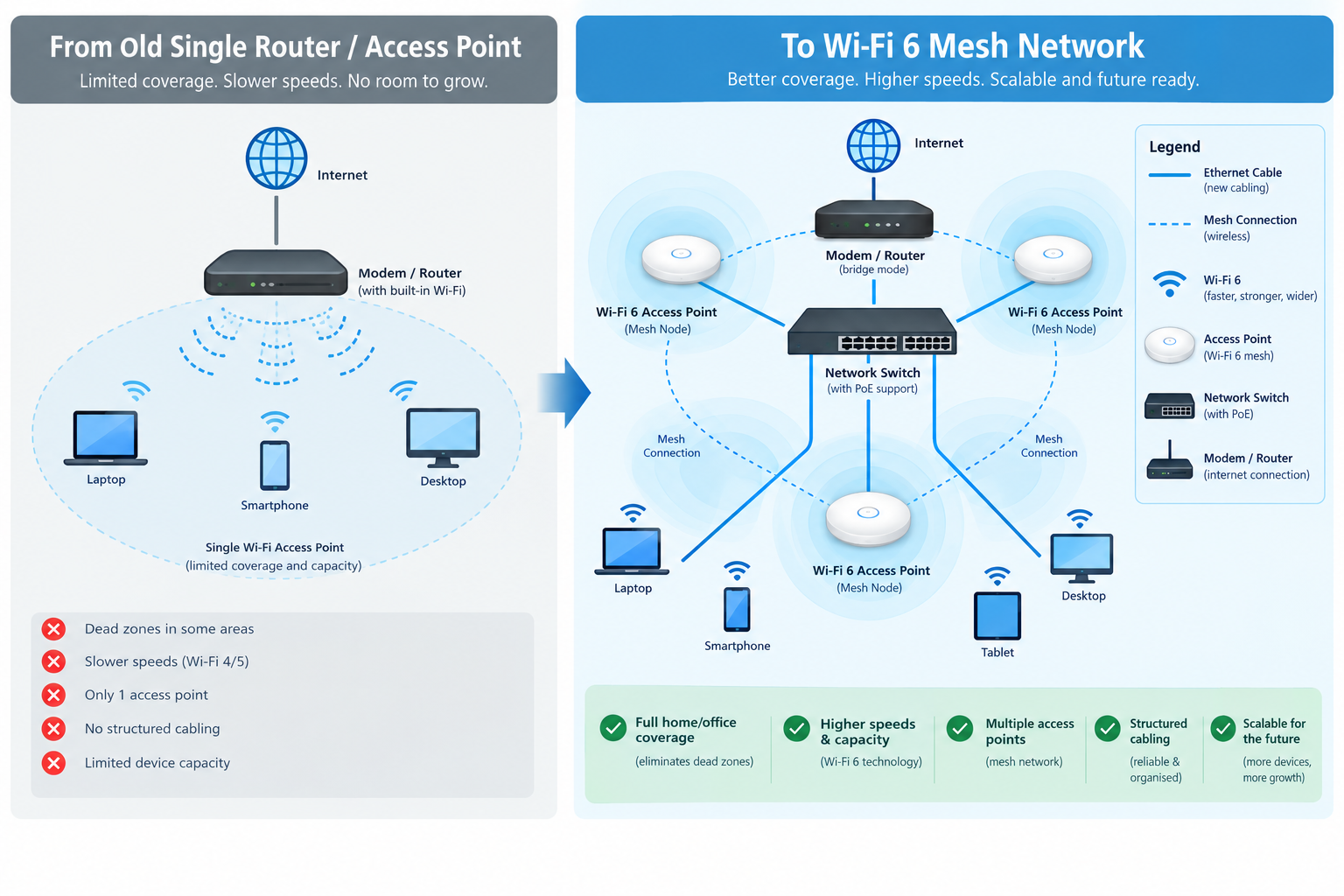
IT Engineering Pro, a Melbourne IT services company based in Oakleigh, designed and installed a Wi-Fi 6 mesh network for a very large home, upgrading it to cloud-managed Wi-Fi with a new router and network switch. The original router sat in the office at the front corner of the house, so Wi-Fi couldn’t reach most of the home. The household was dealing with a weak Wi-Fi signal, constant disconnections, dead spots and slow speeds. We mapped the property with a Wi-Fi heatmap, planned the best spot for a new access point in the centre of the house, and worked with an electrician to run new Ethernet cabling to it.
All the equipment was set up and updated in our workshop before install day, so the on-site work was quick. To fit around the client’s day, both the electrician and our team started early in the morning, well before our usual opening hours. We also provided the home’s internet service through one of our partner internet providers. When the new router needed extra configuration to come online, we sorted it out with them on the day, even though it wasn’t part of the original job. The result is stable, full-house Wi-Fi coverage at 550 Mbps, the maximum speed of the client’s internet plan.
- Wi-Fi 6 mesh network designed for a large home
- Upgraded to cloud-managed Wi-Fi, with a new router, access point and network switch managed from one online dashboard
- Wi-Fi heatmap and coverage plan to place each access point
- New network design provisioned for cost effectiveness, full coverage and speed, including PoE power budget calculations
- Equipment pre-configured in our workshop, with firmware updated to the latest version
- New Ethernet cabling run by an electrician to the access point, plus an extra power point
- Early-morning install, with the electrician and our team on site early to suit the client
- Internet service provided through our partner internet provider, with the new router configured and brought online on the day, even though it was outside the original scope
- Mesh Wi-Fi with seamless roaming, so each device connects to the closest access point without dropping out
- Same Wi-Fi name and password kept, so every device reconnected automatically
- Full-house coverage at 550 Mbps, the maximum speed of the subscribed internet plan, with stable Wi-Fi throughout
1. The client profile
| Industry | Large residential home |
|---|---|
| Problem | The router was in the front office, so Wi-Fi couldn’t reach most of the house |
| Solution | Cloud-managed Wi-Fi 6 mesh network: a new router and network switch, plus a wired access point in the centre of the house |
| Goal | Fast, reliable Wi-Fi across the home without having to reconnect every device |
2. The challenge
With the old setup, the household was dealing with four main Wi-Fi issues:
- Weak Wi-Fi signal in most rooms away from the front office
- Disconnection issues, with devices regularly dropping off the network
- Dead spots where there was no usable Wi-Fi at all
- Slow speeds, even in rooms that could still connect
Behind those problems:
- The original router was in the office at the front corner of the house. In a home this size, the Wi-Fi simply couldn't reach the rest of the rooms, leaving large Wi-Fi dead spots.
- There was no Ethernet cabling to the places where access points needed to go.
- The family had lots of phones, laptops, TVs and smart devices on the old Wi-Fi. A new network would normally mean logging every one of them back in, which they wanted to avoid.
3. How we did it
Step 1: Wi-Fi heatmap and network design
We started by mapping the property with a Wi-Fi heatmap to see exactly where the signal was strong and where it dropped off. From that, we put together new network design options focused on cost-effective provisioning, full coverage and speed. Each option showed where the access point should go and how it would connect back to the router, and included PoE power budget calculations to make sure every powered device would get enough power over the network cable.
Step 2: Design approved and hardware ordered
The client chose their preferred option, and we ordered the equipment: a new router, a Wi-Fi 6 access point, a PoE injector to power the access point over the network cable, an 8-port network switch and Cat6 cabling.
Step 3: Pre-configuration in our workshop
We upgraded the home to cloud-managed Wi-Fi, where the router, switch and access point are all managed from one secure online dashboard. Before going on site, we set up and configured everything in our IT workshop and updated the firmware on every device to the latest available version. That meant install day was about fitting and testing, not starting from scratch.
Step 4: Cabling with an electrician
To suit the client, install day started early in the morning. An electrician ran new Ethernet cabling from the front office to the centre of the house, so the access point connects back to the router by cable rather than relying on a wireless link. This keeps speeds high and connections stable across the house. At the client’s request, the electrician also installed an extra power point.
Step 5: Installation and internet connection
Our team arrived early in the morning, well before our usual opening hours, to install the router, access point and switch and bring the network online. The home’s internet service was provided through one of our partner internet providers. As often happens when the main router is replaced, the connection needed extra configuration before it would come online. We worked directly with our partner provider and had it sorted on the day. It wasn’t part of the original scope, but the job wasn’t done until the internet was working, and the client didn’t have to deal with any of it themselves.
Step 6: Keeping the same Wi-Fi name and password
At the client’s request, we set the new network up with the same Wi-Fi name (SSID) and password as the old one. Every phone, laptop, TV and smart device in the house reconnected on its own, with nothing to re-enter.
Step 7: Testing
We tested the Wi-Fi throughout the house and connected the client’s devices to confirm everything worked. Coverage was strong and stable throughout the whole house, with speeds reaching 550 Mbps, the maximum of the client’s subscribed internet plan, and the client was very happy with the result.
4. Results
The new setup delivered:
- New network design, provisioned for cost effectiveness, full coverage and speed, with PoE power budget calculations
- Cloud-managed router and access point, monitored and updated remotely
- Full-house coverage, with no more dead spots
- Mesh Wi-Fi with seamless roaming: each device connects to the closest access point automatically, without dropping the connection
- 550 Mbps, the maximum speed of the client’s subscribed internet plan
- Stable Wi-Fi throughout the whole house
| Area | Before | After |
|---|---|---|
| Wi-Fi coverage | Weak signal and dead spots across most of the house | Full-house coverage, stable throughout |
| Speed | Slow in distant rooms | 550 Mbps |
| Connection stability | Devices regularly disconnecting | Stable connections across the home |
| Network | Single router | Cloud-managed Wi-Fi: new router and network switch in the front office, plus a wired Wi-Fi 6 access point in the centre of the house |
| Internet connection | New router needed configuring to connect | Internet supplied through out partner provider, with the new router configured and online on the day |
| Device reconnection | Every device would need reconnecting | Same Wi-Fi name and password so devices reconnected automatically |
5. FAQs
A single router can only cover so much space, and walls, floors and distance all weaken the signal. In a large home, the far rooms often end up with slow or dropping Wi-Fi. Adding properly placed access points fixes this.
A Wi-Fi heatmap is a map of the property showing where the signal is strong and where it is weak. It is used to decide exactly where access points should go, so coverage is planned rather than guessed.
Usually, yes. When access points are connected back to the router with Ethernet cable, they don’t have to share Wi-Fi bandwidth to talk to each other, so speeds stay higher and connections are more stable across the home.
Cloud-managed Wi-Fi means the router, switch and access points are managed from a secure online dashboard rather than one device at a time. Your IT provider can monitor the network, push firmware updates, change settings and troubleshoot problems remotely, often without needing to visit.
Not if the new network keeps the same Wi-Fi name and password. Phones, laptops, TVs and smart devices then reconnect automatically, which saves a lot of time in a busy home.
Yes. IT Engineering Pro provides Wi-Fi installation and home Wi-Fi and network setup for homes and businesses across Melbourne, from our office in Oakleigh, including mesh Wi-Fi, access points, cabling coordination and internet services through our partner internet providers. We start with a free consultation and a fixed, upfront quote.
Need Wi-Fi installation in Melbourne?
IT Engineering Pro designs and installs Wi-Fi and networks for homes and businesses across Melbourne, from Wi-Fi heatmaps and mesh systems to cabling and internet setup. Free consultation and fixed, upfront quotes. We also provide network design, on-site support and managed IT.
Call +61 3 9570 4742 · info@itepro.com.au · Request a free quote
IT Engineering Pro, 172 Warrigal Rd, Oakleigh VIC 3166. Open Monday to Friday, 10am to 5pm.